Red Vs Blue Pill - Making the right decision on the choice of BI Server


This universe is governed by a cosmic duality, sets of two opposing and complementing principles, or cosmic energies that can be observed in nature. 

There's Yin and there's Yang...

There's relational and there are non-relational databases...


And of course, the visualization tools; There's Tableau Server and there's Power BI Embedded.!!

Yin & Yang.

There's no such thing as a perfect BI server that solves everyone's (the admin, the data-scientist, the analyst, the end-user) problems. Each of these tools outweighs each other in several aspects and we are about to settle the score once and for all on a one-on-one comparison between Tableau Server and Power BI Embedded.

By the time when you are done reading these articles, you should be able to answer the following question: 
Should you choose Tableau Server or Power BI Embedded? 


After this, there is no turning back. 

Choice of the Cloud & Databases:

Are you using Microsoft SQL server or are your servers hosted on Microsoft Azure? well, why not use Power BI? Yes, you heard me right, you've got a good edge over the Tableau. Check if the data source that you are using, is developed or maintained by Microsoft or even better - Check if your database is compatible for not being required to have an on-premises data gateway from this link.

Of course, this is not the case with Tableau; with a wide variety of connectors and drivers to establish the connectivity, Tableau seems to be much more friendly in terms of the databases. Also, with the support of Tableau Server packages for Linux, Tableau servers have become much more efficient in managing the resources.


Data Extracts & Refreshes:

How huge is your data? And are you using extracts or live connections?
Of course, you may follow all the good practices; if your extract still happens to be huge in size, Tableau seems to be a better choice. The ability to devise a multi-node architecture for the tableau server is a better fit to improve the performance of the data extracts and data refreshes.
In the case of Power BI, the rate of refreshes depend on the size and configuration of the data gateway instance deployed in the same subnet as that of the databases (for Non-Microsoft databases).

Visualization Renders:

Visualization is the core of the BI exercise. And if those dashboards are not loading on time, that's gonna hit you real bad. The rendering is all dependent on the hardware - especially the memory. In Tableau, you get to control your hardware - whether it's a cluster setup or a single node setup.
Tableau is clearly the winner here since you are not limited by the number of renders happening. 


This is not the case with Power BI where you need to purchase a premium dedicated capacity for the rendering to happen; the lowest configuration - A1 has a capacity of performing about 300 renders per hour with a price of 1$ approx per hour.
Well, it doesn't stop there.  and when your audience grows and when you go up the ladder all the way from (A1 to A6) configuration, you will know that you are shelling out a huge amount of money (could go all the way up to 36 times that of the cost of A1).


Scale:

How many viewers are about to have a look at your dashboards? Is it going to be the dashboard with your visualizations on it or is it going to be just the PDF rendering of your dashes?

For client-side renderings; Tableau has a cluster setup available to be configured with multiple nodes, each of which can be assigned with the specific processes and dozens of other tweak-able options in hand; scalability is at disposal for the Tableau admins.

Does it mean that Power BI is up for no good? Definitely not. They do have a dedicated capacity that can be modified based on the peak hour refresh rates and the number of renders happening in an hour.

We don't have any winners for this round, since both the services incur similar costs when it comes to the licensing aspect.


Licenses & Pricing:

By this time, you might have figured out the right BI tool for the job. And that's the reason why pricing comes at the end.

This topic by itself requires a separate post to talk about as a whole. We will try to cover as crisp as we could in this section.


Let's look at a hypothetical scenario, Shall we? Consider an Organization with about 200 data scientists; let's estimate the Pricing for both Tableau Server & Power BI Embedded.


Tableau Server - Requisite & Cost: 


1. License for the users to use Tableau Desktop & publish to tableau server [70$ per user per month].
2. A tableau server hosted an a compute instance with at least 8 physical cores and 32 Gigabytes of RAM (if a cluster setup is required for better performance - add two more instances with at least 4 cores and 16 Gigabytes of RAM to it) [Single node - 0.70$ per hour; Cluster 0.70$ + 0.38$ + 0.38$ = 1.46$ per hour].
3. A Server creator license with the required number of creators [70$ per user per month].

Total incurred cost per month: (200*70)+(1.46*730)+(200*70) = 29065.8$ per month (For a cluster Setup)

Power BI Embedded - Requisite & Cost:

1. Pro License for the individual users [9.99$ per user per month].
2. A Power BI Embedded dedicated capacity for performing the refreshes on a custom workspace - let's consider A4 for the sake of the discussion [$8.06 per hour].
3. A data gateway inside the same subnet as that of the database (recommended configuration of 4 cores and 16 Gigabytes of RAM) [0.38$ per hour].

Total incurred cost per month: (200*9.99)+(8.06*730)+(730*0.38) = 8159.2$ per month 

Now that we have the facts right., it's time to pick our winner!! There isn't. Both are good contenders and it all comes down to our requirement & usage.

Let's build Visualisations; not wage wars!!

Postgres: Optimization & Beyond


Postgres, one of the widely used Relational Database Management System; has been widely adopted due to its ability to handle different workloads such as web services, warehouses, etc.
Fun Fact: The name Postgres comes from it's predecessor originated from UC Berkley's Ingres Database (INteractive GRaphics iterchangE System; meaning it's Post-INGRES).
There are times when the performance is straight forward and in other cases when the expected performance is not met; the Database requires some tweaking in the form of structural modifications to the table, Query Tuning, Configuration improvements, etc.

This article will provide some useful pointers and action plans to become a power-user in optimizing Postgres.

What to do when a query is slow?


In most cases, the occurrence of a slow query is due to the absence of indexes, for those fields that are being used in the where clause of the query.

That should have solved the problem, right? RIGHT?

You:


I hear you; Life ain't Fair, or Is it?

Not all Indexes for the fields in the WHERE clause can be helpful; It all depends on the appropriate query plan prepared by the optimizer: Prepend `EXPLAIN ANALYZE` to the query and run it to find the query plan.

Pro Tip: Use https://explain.depesz.com/ to visualize and analyze your query plan. The color formatting gives a straight forward output to debug the reason for the slowness.

The query plan itself can provide a whole lot of information about where the resources are overflowing. Given below, are a few of those keywords that you can find in the query plan and what they mean to you and the query performance.

Sequential Scan:

Yes, you read that right. The scan occurs sequentially; the filter runs for the whole table and returns back the rows that match the condition which can be very expensive and exhaustive. In the case of a single page / small table, Sequential scans are pretty fast.

But for larger tables; To speed up the query, the sequential scan needs to be changed to an Index Scan. This can be done by creating indexes on the columns that are present in the where clause.

Index Scans / Index Only Scans:

Index Scans denote that the indexes are being properly used. Just make sure that the analyzing & vacuuming happens once in a while. This keeps all the dead tuples out of the way and allows the optimizer to choose the right index for the scan.

Bitmap Index Scan:

And this right here is the bummer. Bitmap Index Scans are accompanied by Bitmap Heap Scans on top. These scans occur mostly happen when one tries to retrieve multiple rows but not all, based on multiple multiple logical conditions in the where clause.

It basically creates a bitmap out of the pages of the table, based on the condition provided (hence the Bitmap Heap Scan on top). The query can be sped up by creating a composite index A.K.A multicolumn index; which changes this scan to an Index Scan.

Caution: The order of the columns in the composite index needs to be maintained the same order as that of the where clause. 

Summarizing:

Indexes are good; Unused Indexes are Bad;
Having Too many Indexes is OK, as long as they are being used at some point.

More RAM for the DB is Good.

The VACUUM & ANALYZE of the tables is too good!!!
ARCHIVAL of Old Data --> Being a good citizen and you are awesome!!


Optimal Settings for a Postgres Engine:

For optimal performance, the following settings (requires a restart of the server) need to be made to the Postgresql conf file present in: `/etc/postgresql/10/main/postgresl.conf`

shared Buffer - 75% of RAM
work_mem - 25% of RAM
maintenance_mem - Min: 256MB; Max:512MB

Consider the scenario, where Postgres Server's has 160Gigs of RAM:

shared_buffer: 120GB
work_mem: 40GB
maintenance_mem: 256MB

Steps to Optimize a query:

1) Run Explain Analyze on your Query, and if takes too long; Run Explain on your Query.

2) Copy the output and paste it onto the dialogue box @ https://explain.depesz.com/

3) Check the Stats of your query:

Index Scans / Index Only Scans are the best and no changes need to be made.

Sequential Scans can be converted into Index Scans by creating the index for the particular column in the where clause.

Bitmap Heap Scans can be converted into Index Scans by creating composite indexes A.K.A multicolumn indexes, with the same order as that of the where clause, as:

CREATE INDEX $indexName ON $tableName ($Field1, $Field2);

Note to Self: Index & Optimize.!!


Flyway - Database Migrations made easy & How not to accidentally Roleback all of your migrations

Flyway - by boxfuse: This is a schema migration tool and it acts more of like version control for your relational databases.

If you are manually executing your SQL scripts or if your administrator is manually executing the SQL scripts, on your production or UAT environment, you definitely need this tool to be set up in all of your environments.

Before we proceed:

Statutory Warning: 

Never ever execute the following command, be it your production or UAT environment:

$ flyway clean   # Do not execute this, ever!!!!

Wondering what it does? It roles back whatever table migrations/changes you have done through flyway, along with their data. 

In short, Don't ever execute this command.

Now that we are done with all the warnings:


Installation:

It is fairly straight forward:

Run the above command in a shell prompt.
Running the above creates a directory called as flyway-x.x.x/
Inside this directory are many other directories of which, the two most import directories are:
  •  conf/ - Configuration for each of the databases are kept here as individual conf files
  •  SQL/ - SQL migrations are kept under different directories for each of the above configurations

Setting up the Configuration file:


If this is your first time with flyway, I would urge you to go through the configuration file from top to bottom, it's kinda fun, comical, and scary too. Especially, this part -  quote and quote from the default configuration:

# Whether to disabled clean. (default: false)
# This is especially useful for production environments where running clean can be quite a career-limiting move.
flyway.cleanDisabled=false


It's all fun until one day you accidentally do a clean.
Again, make sure that this option flyway.cleanDisabled is set to true, at all costs.

First Things First - User creation in the Database:


Make sure you have two users created in your database.

1) A normal user which should be used at all times - doesn't have delete or drop privileges:

E.g.: In MySQL:


2) And a deleteOnlyUser which should be used only during repair operations and delete/drop operations in a database. The reason why we have such an alternate user is to have much more clear access control over the database.

E.g.: In MySQL

SQL Setup:

Place all the SQL files in their individual directories corresponding to each of the databases under the SQL directory inside flyway-x.x.x.

Each of the SQL files should be named with a flyway friendly convention, as:

V1.0__some_random_text.sql

Make sure that the V in the filename is an uppercase.

Configuration Setup:

Delete the default configuration file under conf and substitute it with something like the following. Once again, there will be two configurations one for the default user and another for the deleteOnlyUser as:

1) DefaultUser Configuration:


2) DeleteUser Configuration:


All Set for migration:


Now, there are some basic commands in the flyway for migration, repair, and displaying the information.

Info:
$ flyway -configFiles='flyway-x.x.x/conf/$file_name.conf' info

Displays the schema versions and baseline related information from the MySQL schema_version table.

Migrate:

$ flyway -configFiles='flyway-x.x.x/conf/$file_name.conf' migrate

Migrate command scans the filesystem for available migrations. It also compares these with the completed migrations. It is the centerpiece, aiding in the migration of the SQL files.

Repair:

$ flyway -configFiles='flyway-x.x.x/conf/$file_name.conf' repair

When there's a failed migration, upon correction; the checksums need to be Realigned of the applied migrations with the ones of the available migrations.

Clean:

$ flyway -configFiles='flyway-x.x.x/conf/$file_name.conf' repair

Don't even think about it. If you are still wondering, it rolls back all of your migrations. Not suitable for Production/UAT/Pre prod or anywhere else.

BONUS: Migrating to a different version of flyway or Starting afresh with a new set of SQL scripts:

Let's say, our database grows in size, and there comes a scenario where the old migrations need to be archived. In that case, the following maintenance needs to be done.

Step1:

In Mysql:

mysql> drop table flyway_schema_history;
mysql> drop table schema_version;

Step2:
Alter your configuration file to locate the recent SQL files and set the baseline to a different version number.

Step3:

Baseline:

$ flyway -configFiles='flyway-x.x.x/conf/$file_name.conf' baseline

This baselines the database with the mentioned version. This will cause migrate to ignore all migrations up to and including that particular version.

That wraps up our discussion and flyway.

And remember kids; Always set your flyway.cleanDisabled as True.

# Whether to disabled clean. (default: false)
# This is especially useful for production environments where running clean can be quite a career-limiting move.

Happy safe Wrangling!!!

Featured Posts

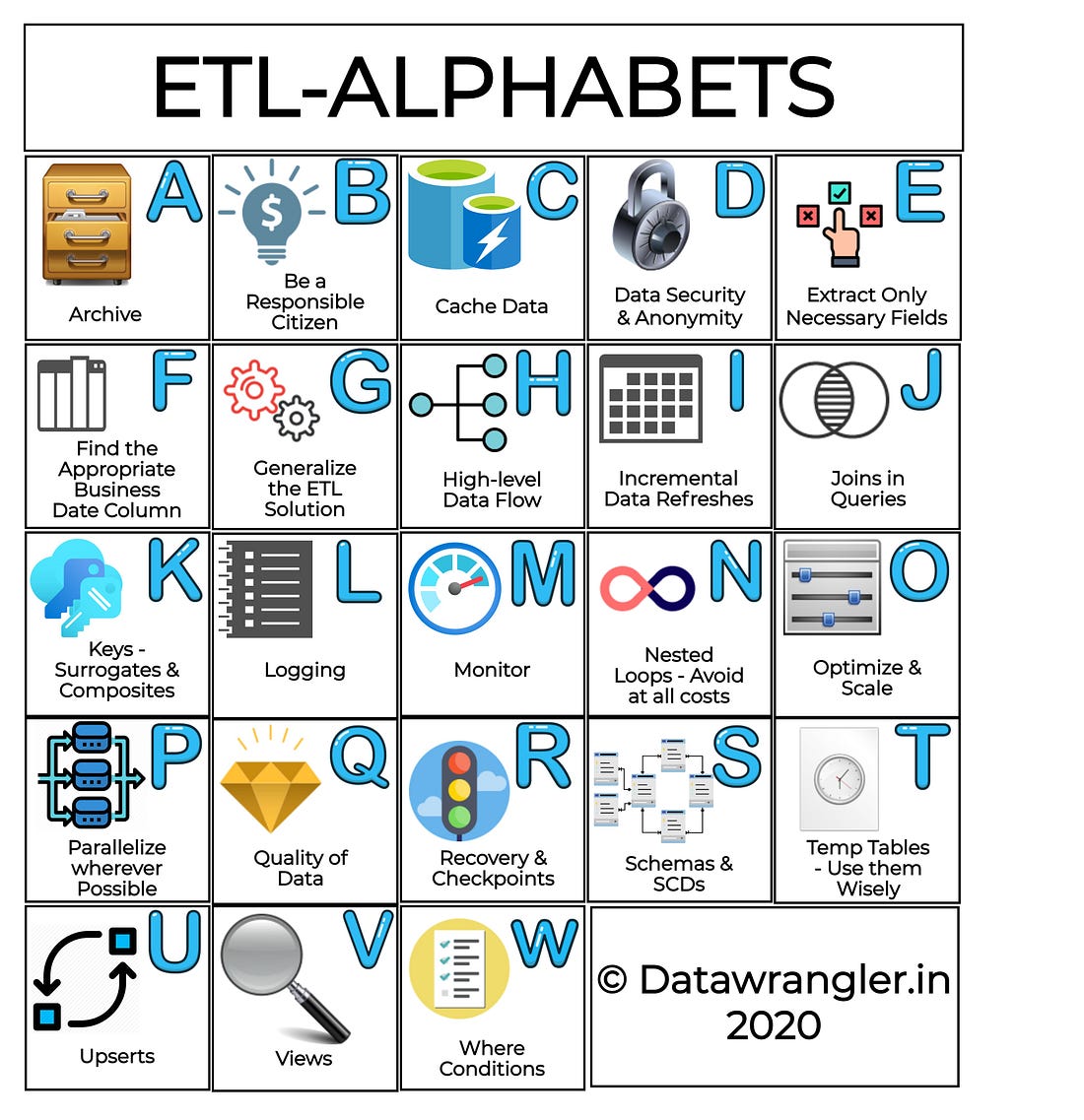
ETL & Enterprise Level Practices

  ETL Strategies & Pipelines have now become inevitable for cloud business needs. There are several ETL tools in the market ranging fro...